Showing posts with label Google Docs. Show all posts

Tuesday, June 19, 2012

Get Your New Drive On

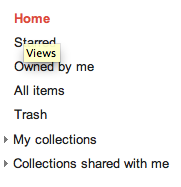
As our district moves from Gaggle to Google for our mail provider we will have many questions to answer as a G-Apps School district.  Many of our staff members were already using Google as their mail provider and digging into Docs as part of their daily work flow.  One major question that has come up is "How do I get my old Google Docs to my new BPSNE Google Drive account?".  Drive by the way it Google’s new word for your Docs list.  It operates basically the same with a few more view options.  It looks like this :
Old Docs View
New Drive View
**


Luckily, there is a quick and easy solution for all those previous Google users!  It’s called Google Takeout!   In less than five minutes you can move all your docs quickly and easily to your new account!  Follow these steps below to get your Drive on!

1.  Go to Google Takeout
2.  Click on Creat Archive
3.  Watch your files load into a zip file:

4.  Click download when it is complete.
5.  Go to your new .bpsne.net google account
6.  Click on “Drive”
7.  Click on the red upload button next to create:


8.  Find the zip file in your download folder


9.    Click “open” and watch your files upload to your new drive!

10.  Once the file has been uploaded you will need to open it.  You will see a list of all your docs.  Hover to the far right and when the hand appears click "save to google docs".  You will have to do one at a time.  

10.  Now all of your old docs are in your new Drive!  

Note:  It took me two times to upload the zip file.  The first time I get an error message, but didn't panic.  When working with web-based applications sometimes you just have to try again!

Troubles or questions tweet us at @jennykbps, @techiefeldie, @catlett1

Written by Jenny Krzystowczyk

Wednesday, April 11, 2012

Six Essential Tech Tools for 21st Century Classroom Workflow

What is the workflow for a 21st century classroom?  What does it look like?  Where to start?

These six ideas will help create a classroom that is engaging and inspiring long after the last bell rings.   Publishing, sharing, collaborating, and global is the name of the game.  Our connected learners need lessons that challenge them to think critically, share knowledge, be inquisitive, and collaborate globally. The workflow from classrooms of the past, must be left in the past.  The concept of a Flipped Classroom must be explored.  These tools are just a few to utilize to start flipping your classroom. 


A flipped classroom is an environment where students learn the lecture content online outside of the classroom via a movie.   Students are able to pause, rewind, and view a concept over and over.  Additionally, students take ownership of learning the material.   There are many benefits to this concept for the teacher. One benefit is that this frees up class time for discussion, projects, speeches, labs, and other engaging projects and allows teachers more one on one time with students. This is the reverse of how a traditional classroom works where the lecture is delivered to a whole group by the teacher with a minimal about of time for homework.
(Flipped Classroom Resources: A flipped highschool: Clintondale, Flipped classroom Prezi, Khan Academy, The Future of Education?).

The time is now to engage our passionate, mobile students in a classroom that uses learning modalities of their generation.  Dare to take the bold step in transforming your teaching style to meet the needs of the digital generation.
Prezi - http://prezi.com


Create engaging web based presentations for students to view at their own pace with PREZI.  Prezi is a non linear way to make a presentation.  You can easily embed PDF files, images, and YouTube videos.  This is a fantastic alternative to PPT's and provides students a way to view and review material that has been presented in class.

After a Prezi is created, click exit.  There you will find lots of options for sharing the Prezi.  The presentations are web based so it can easily be shared via a link or tweeted out. Simply click the Twitter icon from the Prezi site.    If you have a classroom hashtag on Twitter, students can find it your classroom stream.

Prezis default as Public.  If you want to create private Prezis, there is a fee.  You do have the option to allow your Prezi to be copied or not.
There is also a tab called explore.  Click this tab see other Prezis that have been created.
Prezi Resources:
Cybraryman's Prezi Page
Examples:
Courtney Smeby - Nebraska History Review
Amanda McKibbon - Crayfish
Screen R - http://www.screenr.com/
Create screencasts for your students to view anywhere in the world. This site is easy to navigate. Within minutes, you can create a screencast on any topic. This is the perfect way to create tutorials for students.  Students can view it again and again to learn, re-learn, and move to complete understanding of a concept. Screenr is perfect for explaining a new concept or a creating how to tutorial on a topic. This is the perfect tool to use as an anticipatory set or a chapter / unit summary.  Video are easy to link or embed on blogs or websites.
Here are several examples for you to check out.


Article:
Flipping Your Classroom


Sharae Geldes - Explaining Geometric Concepts
Courtney Jameson - Double Spacing a paper
Luke Olson - Using Easybib.com
YouTube
YouTube is a game changer for the classroom.   From either the student or teacher perspective, YouTube can be a powerful educational tool.
Students:
  • Create and publish projects that demonstrate mastery of an objective.
  • View videos to learn a concept at their own pace.
  • View videos to review for exams.
  • View how to videos to learn a skill.
  • Utilize a YouTube channel to create a digital portfolio of learning.
Teachers:
  • Create a classroom YouTube Channel and post teacher created educational videos that correlate with the curriculum.
  • Utilize lists to curate a collection of videos to use in the classroom.
  • Use the video editor in YouTube to edit video.
  • Reflect on lessons and share with principal.
Videos can be linked, embedded, or the subscribed to.
Example:
Tech Tools For Teaching YouTube Channel
Michael Gentry - Friction
Similes and Metaphors in Pop Music
Carrie Borner - Idioms
Alex Williams - Gas Laws
Katie DeBuhr - Animal Types
Andy Fjelland - Density
VoiceThread
According to voicethread.com, “A VoiceThread is a collaborative, multimedia slide show that holds images, documents, and videos and allows people to navigate slides and leave comments in 5 ways - using voice (with a mic or telephone), text, audio file, or video (via a webcam).”
Creating and sharing a VoiceThread is a powerful way for students to reflect on a topic.  During this process of metacognition, students can monitor their own progress in learning where students, teachers, and parents can provide feedback.  
In addition, VoiceThreads are fantastic ways for students to create presentations that can easily be embedded, tweeted, or shared on a website.  This published work is shared far beyond the four walls of the school and potentially can have comments from people around the globe.  The web based nature of VoiceThread makes it a must have in every teacher's lesson plans.
The skills to collaborate, communicate, and share are skills that students need for the world they live in.


Example:
Stacy Turner - teacher and grad student
Becky Meier - teacher and grad student
Digital Study Aids
Digital study aids such as the three listed below, make mobile students connected to learning wherever they may be. Each of these tools are easy to use, web based, and mobile!  No excuse not to learn!
Quizlet-
http://quizlet.com/   
Word Dynamo - http://dynamo.dictionary.com/
Study Stack -
http://www.studystack.com/

Example:
Mr. Myers  - American History
Digital Presence
A digital presence is a must for 21st century teachers.  If teachers aren’t blogging  and/or having a classroom web presence, they should be.  All classroom materials should be accessible for students so that continue learning happen regardless of location.  Purposeful, engaging, learning must be available online anywhere so students can learn on the go.   Having classroom materials easily accessible is a must for these mobile learners and their parents.   

Examples:
Dr. Kingsley's Third Grade
Mr. Sims Fourth Grade


-Ann Feldmann

Wednesday, January 18, 2012

ROAD TRIP

Recently, on Dr. Martin Luther King Jr.'s birthday my Colleagues @techiefeldie &@jennykbps traveled West to York, Nebraska to present on Google Docs at the York Public Schools In-Service Day.  @chericson & @mrbadura & @Coach_Sautter were the gentlemen who felt highly enough of us to invite us & bring us out to present on their amazing Professional Development day.  It was #dukepd12 if you are familiar with Twitter.

On our Road Trip West we came up with this slogan in HONOR of Dr. King - - - Google Docs is like Dr. Martin Luther King Jr. empowering people to be free!  

My colleagues and I love Google Docs and are passionate about sharing it with people.  It truly is a game changer and revolutionizes what we are familiar with in Microsoft Word.  The power & potential that is within Google Docs is endless & bringing that to teachers in any city, state, province, or country I would do if I had the chance in a heartbeat!

Here is a link to what we used for our presentations at #dukepd12

Interestingly enough, in my district, we were off / out of school on this PD day in York.  So theoretically we could have stayed home with our families, rested, relaxed, and enjoyed the day off, but because we love to share, collaborate, & connect with teachers & people we jumped at the chance for the ROAD TRIP! 

It's not everyday you find teachers / people willing to do this I think.  I am by no means trying to toot my own horn here so if you are misinterpreting me I am sorry, what I am trying to point out though is teaching is about PASSION.  I love knowing I may have helped someone in the York PD day #dukepd12.

I love working with my colleagues @techiefeldie & @jennykbps and seeing there passion come through them in their work as well.  I love knowing I may have sparked someone to use Google Docs in a new way.  In my dream world we would all be using Google Docs, we would all be using Twitter, and we would be collaborating and flattening the globe with these 2 simple yet complex WEB tools.  Districts could dramatically improve the way they do business if they only used these 2 tools.

In closing, I was humbled & honored to come to York, NE to participate in #dukepd12 and I hope we did well enough that folks got something out of it & our twitter friends from York will still follow us! 
;  )

Monday, January 16, 2012

You Had Me at Share

Google Docs is my FAVORITE Web 2.0 tool!  Why? Because it can be SHARED!  Sharing takes Google Docs to a whole new level.  No longer are we isolated in our work.   Google Docs frees us from the shackles of word processing like Dr. Martin Luther King empowered a nation of people to become free. Google is moving us forward into a collaborative, cooperative, team centered environment whether we like it or not.  It is just up to us to get our heads around it and use the tools to make our workflow simpler, more powerful, and collaborative.

Sharing documents is revolutionizing workflow for administrators, teachers, and students.  The share feature allows documents to be shared between people in a variety of ways.  The best way for the workflow to happen is to leverage share feature in collections.  Collections not only allow work to be organized or grouped but the collections can also be shared just like a doc, spreadsheet, or presentation. 

For example, a teacher creates two collections and calls one Student Work View Only and the other collection Student Work Handed In.  The teacher shares both folders with all students and sets the sharing settings to view.  From this point forward, the teacher creates docs and spreadsheets and simply drags files into the Student Work View Only folder.  It is so SIMPLE to share it with a group of students.  Google Docs make it as easy to share a folder with students as answering the phone.  Students have access to view all documents in the collection.  For students to utilize a document, they simply open the doc and click File>Make a Copy.  This places a copy of the doc in their Google Docs Home Directory and they can edit it as needed.

Start using the power of Google Docs today! What are you waiting for?

-Ann Feldmann

Monday, October 24, 2011

Bouncing Into the 22nd Century by Embracing New Tools

What makes someone embrace a new technology tool?
Every two years my cell phone is eligible to be upgraded.  Each time I am forced to learn a whole new set of tools in order to communicate effectively with this new phone.  First came texting, then taking and sharing photos, and now with the release of iPhone4S, Siri!  
If educators would be forced to refresh and re-tool with instructional technology in the classroom every two years like we must with cell phone plans, we would be blazing trails into the 22nd century and beyond!
We all cling to the comfort of the old, afraid to drop the heavy old tools we are so familiar with and embrace a collaborative 21st Century tool.  By clinging to old technology and not venturing out to try new things, we become weighted down just like carrying a load of bricks where ever we go.  If we were to try to jump weighted down with bricks, we do not have the ability to leap for the sky.  
As an example, I took a bold new move several years ago when I abandoned my brick of MS Word and took my bold leap into Google Docs.  
It started after I had attended the ISTE conference and learned about this new tool several years ago.  I was at a meeting in school where most people were taking notes in Word, a few even with paper and pencil.  I jumped in with a new Google Doc and shared it with one of my colleague's. As the meeting progressed, we together took notes, added links, and even shared ideas by instant messaging on the side of the doc.  It ROCKED!  When I left the meeting, my notes were not only complete, but the doc was shared with all the people in the room! The days of attaching files and e-mail people are over! Everyone had the power to add more content to this document and the doc is always available in the cloud for everyone to access anytime.
Then and there I knew this was a game changer for workflow productivity.  The power of many brains on one document was revolutionary.  Imagine how teacher collaboration could be transformed if everyone were using Google Docs.

Taking that first step to incorporate a new tool into my routine is vital to continual growth and learning. I am constantly learning, unlearning, and re-learning so I can bounce higher and higher into the 22nd century!

I am glad that I stepped out of my comfort zone and dropped the brick of MS Word and embraced Google Docs.  Letting go and re-tooling is a must.    


It’s up to you, are you ready to drop a brick and bounce into the 22nd century with with me?
-Ann Feldmann