Showing posts with label Google Forms. Show all posts

Monday, September 22, 2014

Google Forms & Colorful Updates

With Google forms, grading quizzes and assessments has never been easier!  With the Flubaroo script, you can save yourself hours of grading all with the click of a button!  But sometimes, teachers complain about being locked into a certain format with forms.  Now, you can change all kinds of categories to make your forms look amazing for kids.  
Google has made some great updates in order to customize forms.  You can now completely customize the layout of your Google form by changing images, text color, size, and font, and you can also change the page background.


Follow these suggestions to modify your Google forms.


Once you have entered in all of your questions, images, charts, and etc, click on the “change theme” button.  
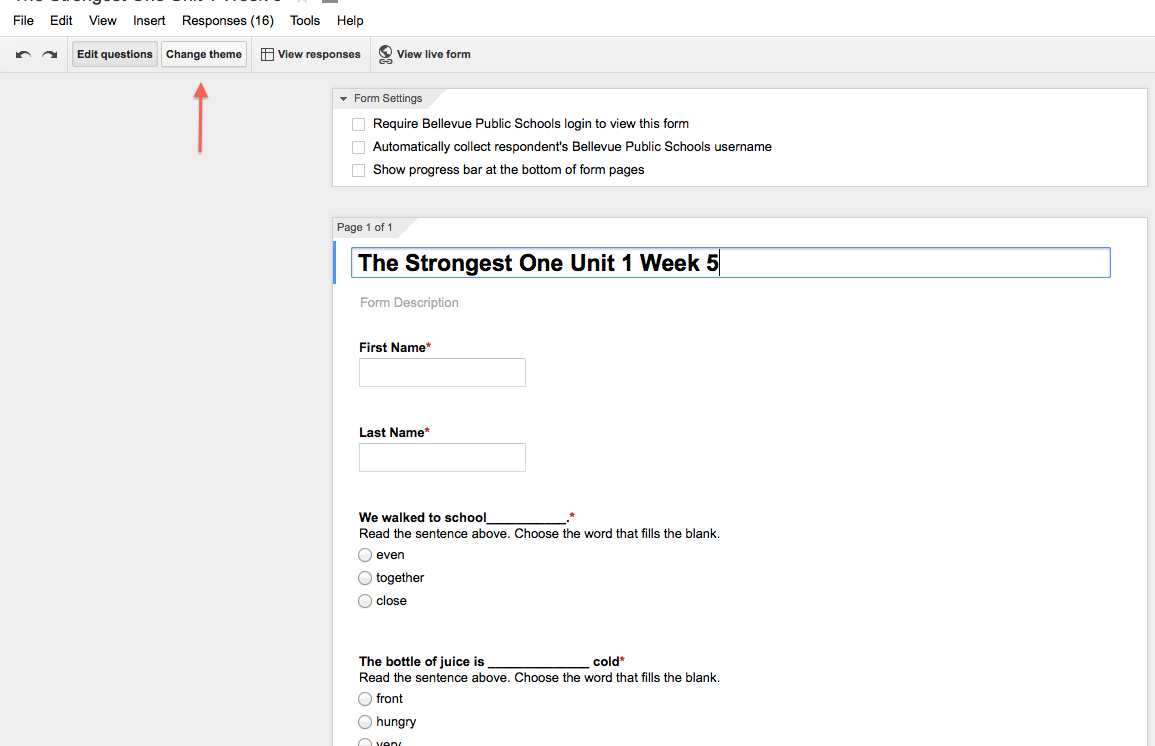
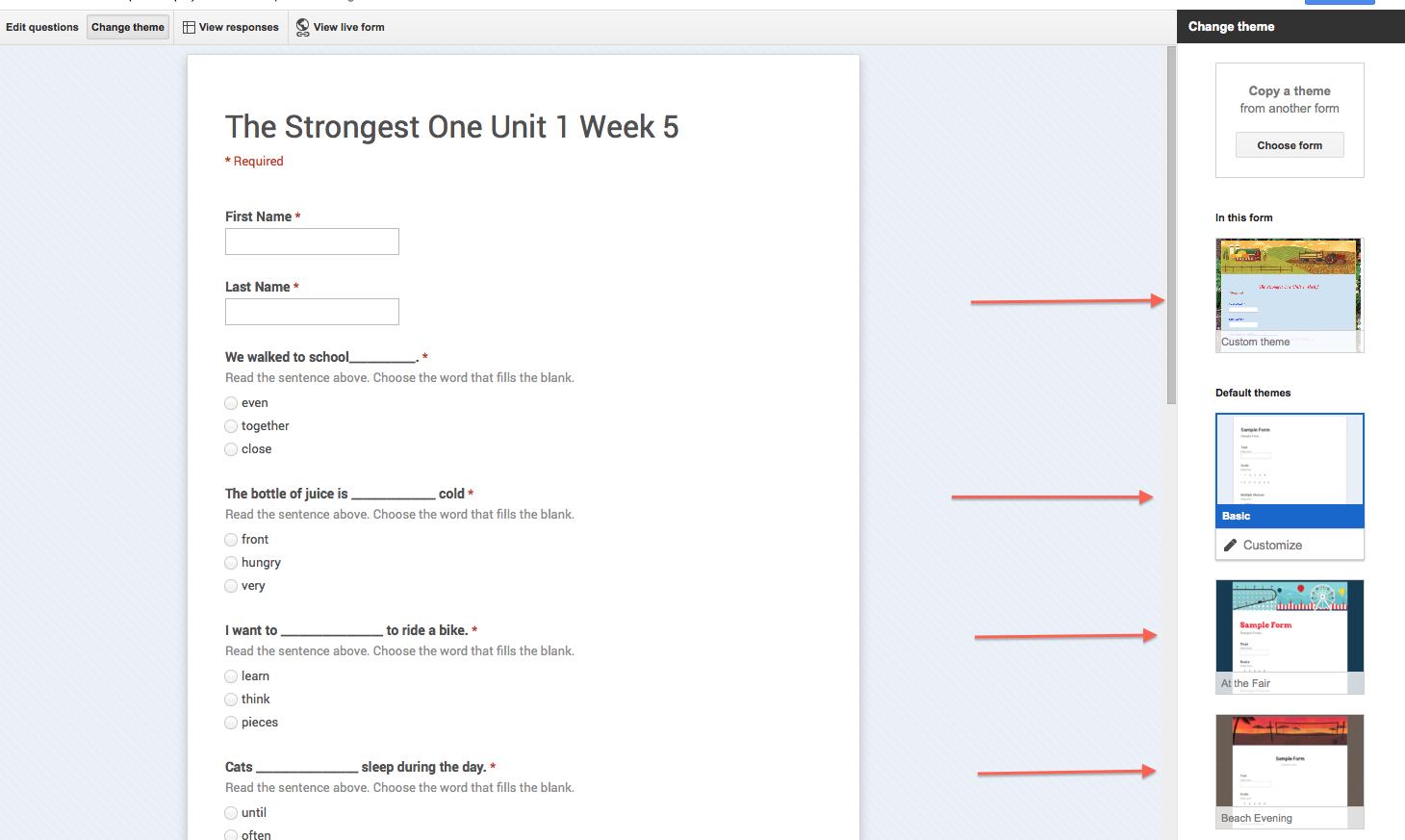
This will give you many new options when it comes to the theme.  Scroll down the right side to get a preview of each new theme.  

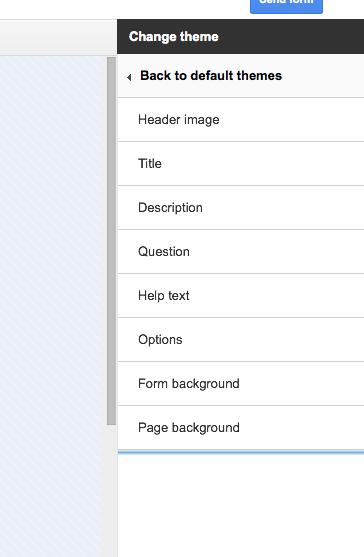
But wait!  There are even more themes to choose from when you tap the Customize Theme button located on each theme window.  Customizing each theme will give you the option to change the font, colors, and size of your text as well as heading images and background images.  
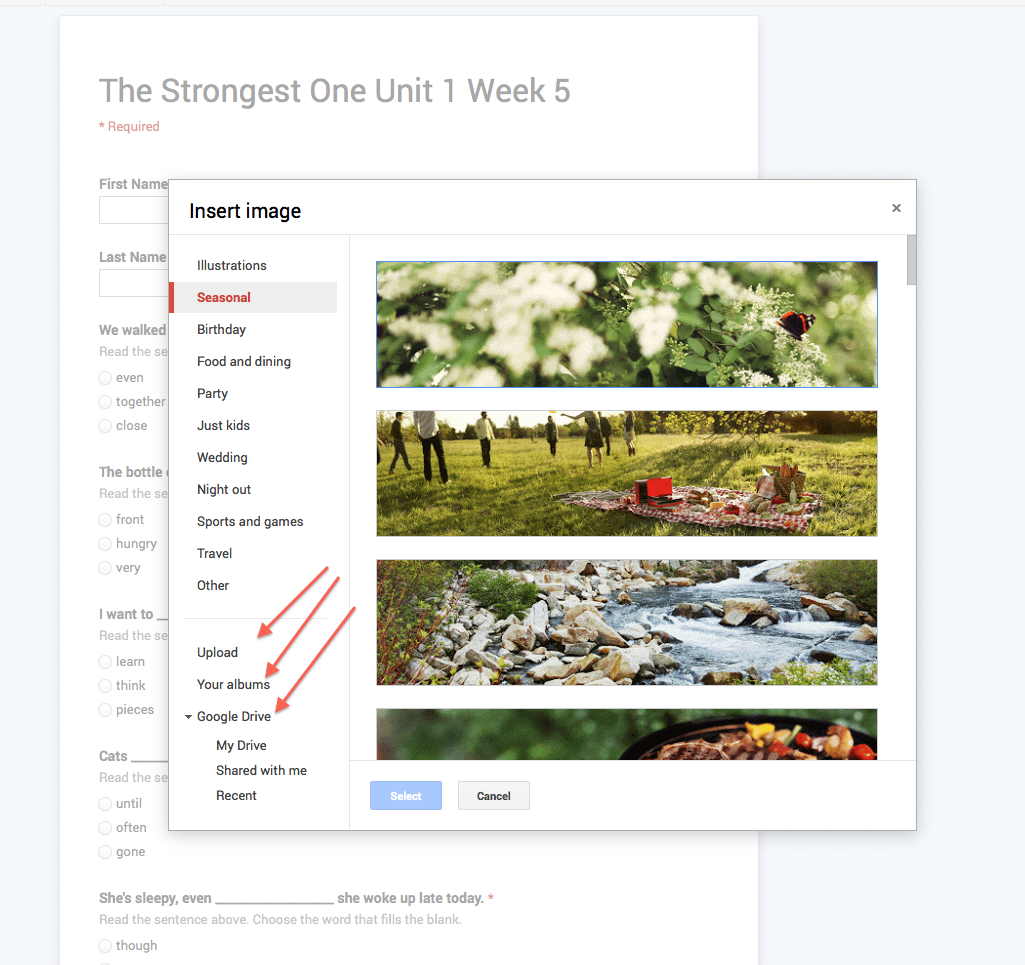
You have unlimited options for images now.  You could choose one that is provided for you, or you can use a saved Google Images to completely customize your form.  
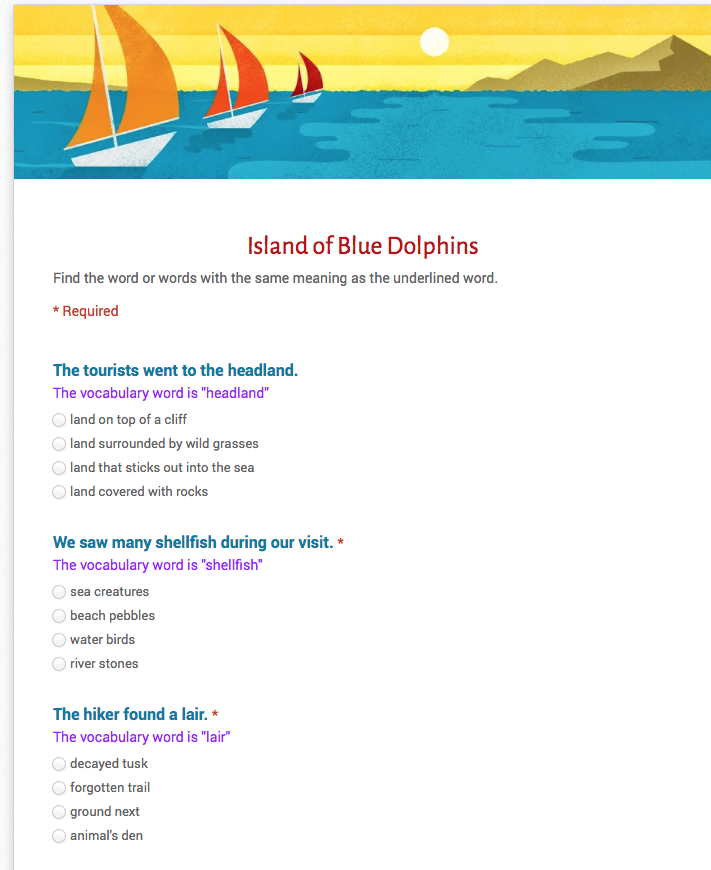
Lately, I have been digitizing some Pearson weekly reading assessments for our iPad teachers.  I copied the questions into a form.  To get the reading selection onto the form, I retyped it on a Pages document and used shift, command 4 to take a picture of the selection.  Next, I used insert image to add it to the form.  Check out how nice this assessment looks now, and teachers are using Flubaroo to grade their tests.  I often write about inserting color into instruction, and this is just another great way that Google can support learning in the classroom.


Written by, Jenny Krzystowczyk
@jennykbps

Monday, May 13, 2013

Google Forms + QR Codes for Student Surveys!


The end of the school year brings it's own challenges for teachers; daydreaming students, disengagement by seniors, and checklists to finish up.  Every year, at Bellevue West High School, teachers in the business department have one last assignment for their students.  It involves surveys, results, graphs, a paper and presentation. Traditionally, the kids work in groups to make surveys using a Microsoft Word document.  Paper copies of their surveys get handed out during study hall time to about 1,600 students.  Surveys are then collected and students sit and enter data points into an excel spreadsheet.  From there they must figure out how to graph each data point separately.  


What’s wrong with this you might ask?  Well, nothing really, except that time is of the essence in May.  Have you ever heard a teacher say, “Wow! We have so much time to kill because we are ahead of schedule!”?   I didn't think so. So for this assignment I suggested the use of Google Forms and QR codes. Forms are efficient, easy to share, and simple to interpret and graph.  


Mrs. Supenski, one of the business teachers, was game and has taken the plunge into Google with me. I’ve been teaching with her and showing her students the ease and magic of Google forms. Their biggest challenge will be marketing the surveys across the school building. And trust me, this will be a challenge. These kids aren’t used to sharing docs and scanning codes.  They are used to pencil and paper.  That means these kids have to get the word out in order to get enough data to write up the results.  Marketing!
 
Here are some of our ideas on marketing the surveys:

  • Set up a table in the cafeteria with a bucket of dum-dums.  Have the codes taped to the tables, help students get the free app they needs, and then give them candy.  Food almost always works!

  • Divide the building up geographically and hang QR codes to their surveys around the buildings and on teacher doors.  They will then touch base with teachers to allow students to scan the codes as they are coming and going and take the survey.

  • Place a Doc on the common directory so that students who might be in a lab can access the link to the survey.

I believe if these kids do a good job of marketing their surveys, more people will take them.  I love that just by using Forms, the assignment becomes more engaging and yes, challenging. Even better, is that Mrs. Supenski is going to have them write up their papers in Google Drive and use Google Presentation to share their results. It's a perfect environment for collaborating, sharing, and efficiency in this end-of-year time crunch. Way to go Mrs. Supenski!


Bellevue West Business Dept QR Codes to their Surveys

Written by Jenny Krzystowczyk
@jennykbps