Showing posts with label ipad apps. Show all posts

Monday, November 24, 2014

It's More Than An App

When rolling out iPads in education, often the first question we get is what are your favorite apps?  We chuckle a little, because we know that iPads in the classroom are more than apps.  And while we do use a criteria for choosing apps, we think bigger than just apps.  Bringing iPads in the classroom is just one small piece of the pie.  There is so much more to consider.   


More than an app is needed to be successful, the question becomes what do you want students to accomplish.  When the focus is on student learning, the conversation shifts from apps to how to craft a student centered learning environment.  The iPad is just a tool, a very powerful one, that if used correctly can unleash learning opportunities teachers and students have only dreamed of.  Training, coaching, and on-going opportunities to grow provides teachers a framework on best practices for teaching and learning in a digital classroom.  Instead of using the iPad as a tool to substitute what is currently done in the classroom, teachers instead learn how to shift from a teacher centered classroom to a learner centered classroom.


In Bellevue Public Schools, we use Google Apps for Ed for our student work flow.  Students have access to e-mail, Google Drive, and YouTube.  These buckets become essential tools as students begin to create work and need to share/store/submit their work from their iPads to their teachers and parents.  We favor app that export to Google Drive or YouTube, allow for creativity, are easy to share, work across all grade levels, and increase collaboration.


We’ve been at this now for three years and have learned a lot.  We shy away from in-app purchases and apps that are used in only one part of the curriculum.  We provide continuous training and support to our iPad teachers through monthly collaboration days, in class coaching and co-teaching models, and bring parents in for iPad sharing sessions. We’ve discovered that we really only need about two iPad screens of apps and only three paid apps.   

Here is a link to our favorite core apps.

Written by

Sunday, March 23, 2014

Creating with Pic Collage


Pic Collage is a fantastic FREE app perfect for students of any age to use in creative ways.  The three main buttons make it an easy to navigate and intuitive to use.  Collages save to Photos where the images are available for "app smashing".  

This week I introduced the Pic Collage app to Mr. Myers (@mrmyers1), 8th grade history teacher, and his students.  Myers is one of our 38 #ipadacademy teachers in #bpsne #iPadAcademy.   

Student challenge


A collage created by a 4th period student.
1  Save 10-12  images from the website, The US-Mexican War   
2. Use the Pic Collage app to construct a visually appealing display of the images.
3. Add text to identify the events and people in the images.  Refer to the website for facts about the image.
4. Save the collage to photos. 
5. Upload the image to Google Drive gClass hand in folders.
6. Use the Reflector app on the computer to "hop on" airplay and share/discuss with the class.  

Unexpected Outcomes

1.  As students organized and constructed the collages, they began to wonder and question. 
2.  These questions led students to spontaneously research historical information over this event.
3.  Student sidebar discussions centered on the War with Mexico.  The informal conversations continued as they worked.
4.  This prior knowledge was beneficial the next day when they learned more about this topic.

Give Pic Collage a try. The price is right, FREE. As I like to say, "If it's free, it's meant to be."

“Creativity is contagious, pass it on” – Albert Einstein


Written by Ann Feldmann
@annfeldmann1

Friday, October 18, 2013

Is iMovie Really Just a Movie?


One of our most beloved apps on the iPad is Apple’s own iMovie.  And guess what?  Our students love it too!  In fact, we use it with all grade levels.  Sometimes I think people have a misunderstanding of the educational value of iMovie.  Yes, it can be used to create a video of a recent trip, a birthday party, or any celebration, but one of my favorite ways to use it in the classroom is the iMovie trailer feature.   


iMovie trailers have great features that demand thoughtful planning by its producer(s).  It encourages collaboration, planning of video shots, and catchy storytelling.  To make a good iMovie trailer, basic writing conventions, and narrative writing skills must be used.  Furthermore, analysis of content, organization of materials and ideas, and editing skills are used throughout the project.  Students feel empowered by the outcome of their projects and shine in the process of creating a trailer.  


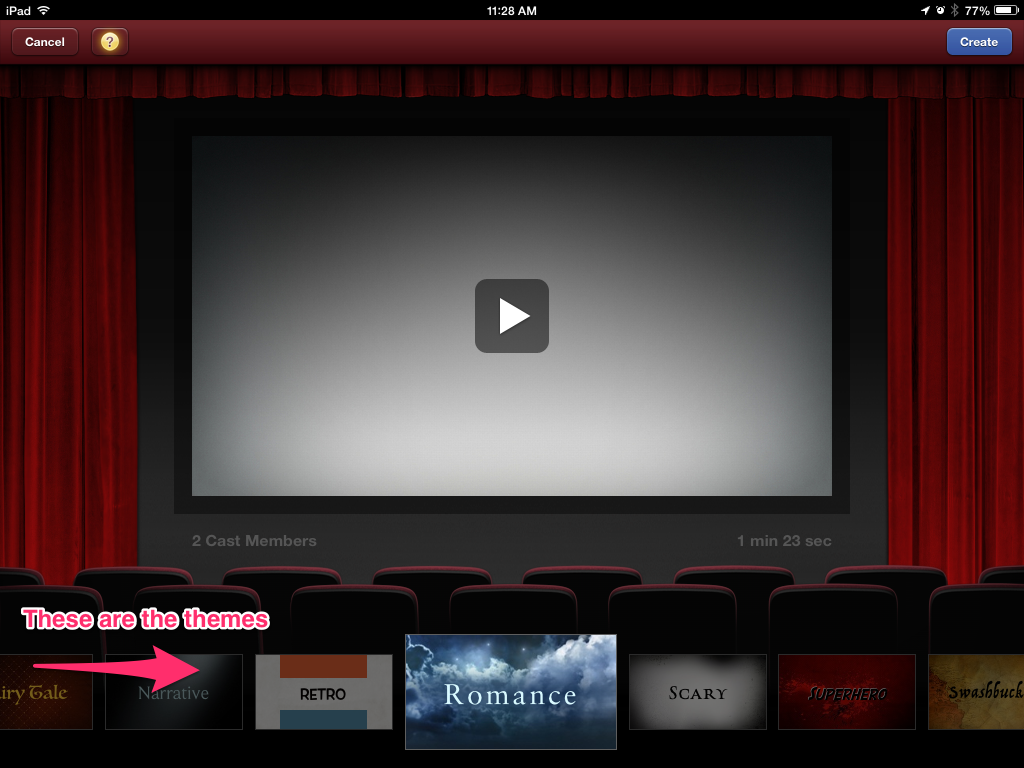
iMovie gives kids choices of themes to use and they always look professional and impressive when they are done.  
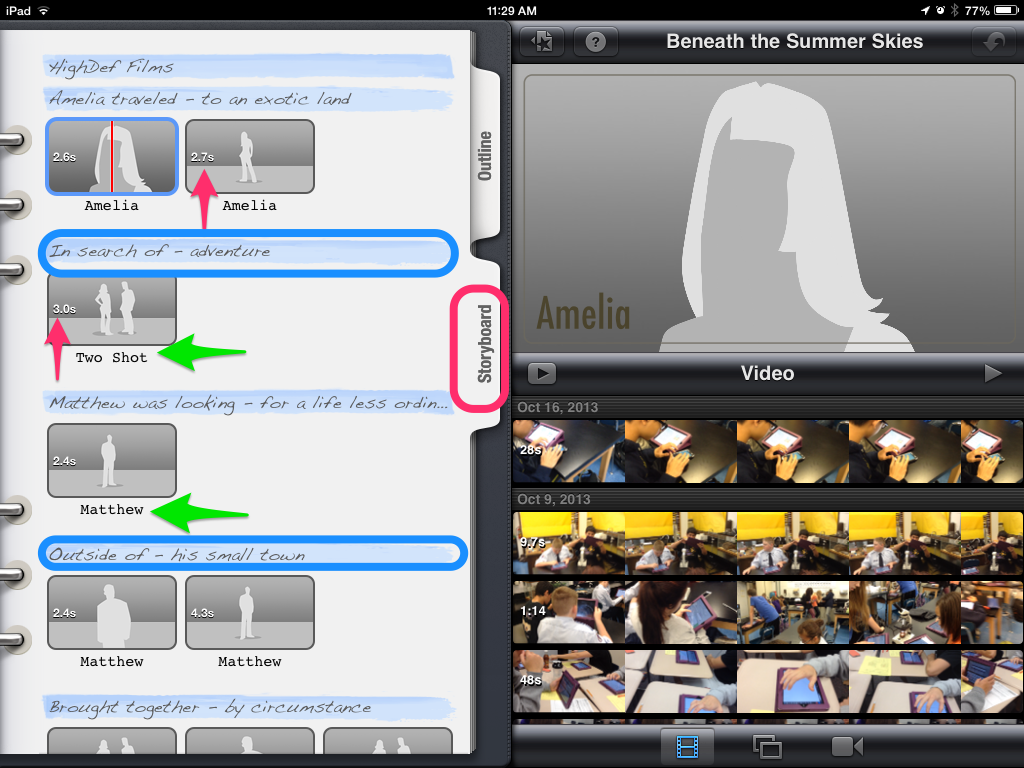
Creating a good iMovie trailer demands that students are thoughtful about the video material they record.  For example, some shots need to be in a wide landscape mode.  Other video shots need to have two people in it to be most effective.  The storyboard below dictates what kinds of shots and how long the shots need to be for their best movie trailer.  I also like the catchy openers identified in blue below.  These phrases can be edited to go with the story.  Here is a pdf iMovie trailer planner you can use before opening up the app.  


Sharing these trailers is easy to do as well because they are often no more than a minute and a half. Students can upload their movie trailers directly to YouTube or house them in their iTunes Library.  Using a gallery walk method with headphones and splitters are a great way to share the trailers your students made.  In this model, place the iPads around your room, preferably at tables, and plug in headphone splitters so that more than one person can listen to the video at a time.  Students love watching the videos together.  Compare this to our traditional Power Point Presentations some of us have had our kids create in the past.  We had to make time to present these.  This process can sometimes take up an entire week.  Using the Gallery Walk method is quick, easy, and engaging for everyone.  

If my enthusiasm for iMovie trailers isn’t convincing enough for you, how about we tie it to a couple of common core standard for insurance?  iMovie matches up to several of them, but I pulled a couple out for the post.  

CCSS.ELA-Literacy.CCRA.SL.2 Integrate and evaluate information presented in diverse media and formats, including visually, quantitatively, and orally.
CCSS.ELA-Literacy.CCRA.SL.5 Make strategic use of digital media and visual displays of data to express information and enhance understanding of presentations.

New technologies have broadened and expanded the role that speaking and listening play in acquiring and sharing knowledge and have tightened their link to other forms of communication. Digital texts confront students with the potential for continually updated content and dynamically changing combinations of words, graphics, images, hyperlinks, and embedded video and audio. From www.corestandards.org

Using the app iMovie gives students a creative platform in which to communicate ideas, analyze materials, collaborate, and edit written work.  Goodbye Power Points, hello amazing trailers and happy students!  

Written by Jennifer Krzystowczyk

                                       @jennykbps