Showing posts with label iPad. Show all posts

Friday, August 29, 2014

The Beauty of Visual Teaching

In working with teachers on implementing iPad technology in the classroom, I am reminded again and again, how the simple act of adding colors and images to a resource can transform a simple lesson.  We want our students to be successful on inevitable tasks, like a simple pencil and paper test, a state test, or basic math operations.  So we go over these skills often times in whole group relying a lot on our verbal directions.  We talk about logical steps and we ask kids to respond to our simple questions. Sometimes we forget that with an iPad in our hands we can add so much more engaging content to a lesson.  


Little things like circling key words in a bright color can grab the attention of our students.  Or using stickers within an app to replace our own maybe messier drawings can have a positive impact during a lesson. We have so many great tools in our hand when we are using the iPad.  I think we need to remember exactly which tools can have an impact.  So the next time you are explaining something to your students while using your ipad and projector, consider making it more visually pleasing.  Here are some ways to make your lessons more visual for your students.  

Prepare your images before your lesson.  
If your math lesson is going to be adding up pie pieces, go find some pie pieces on Google and save it to your photos.  Or if your lesson talks about parallel lines, make sure you have some images of linear building in your camera roll.  You could take it one step farther and create image albums in your photo app.  Organize those photos by subject, lessons, or ideas.  Then they are there when you need them.  This will save you time on the fly during your amazing teaching!

It sounds simple enough, but use color.  You’d be amazed how often I see teachers only using black and white.  Certain colors help students remember information.  Green is a great color to use on a white screen!  Color coding ideas also helps with organizing information.  The app Popplet is a great tool for color coding ideas and information. 

Use an app with easy access to design elements like Notability.  Notability lets you import PDF’s so those plain old documents can get doctored up with its marker tool, highlighting tool, and web-clips.  All of a sudden, student notes start to look like art projects and they are completely tailored to what the students were thinking as they are note taking.

Let your students doodle.  Doodling can be a great brain break for students young and not so young.  Doodling can also be used to portray a feeling or theme from a reading selection.  Don’t be afraid to model a little doodling of you own!  I like the app Paper 53 for doodling or even something as simple as the app Screenchomp.

Begin your lesson with an introduction video featuring you!  Yes!  Use your Camera app and record yourself excitedly introducing a concept or a lesson.  Maybe even dress up as a character that goes with your topic.  Our students can have a short attention span, so a quick 1 - 2 minute intro video might be all it takes to grab their attention and maybe even have a laugh to start a lesson.  

Remember, joy is important and learning can be not only fun, but beautiful!  

Written by, Jenny Krzystowczyk
@jennykbps


Sunday, August 3, 2014

Bellevue Public Schools iPad Academy Model

How did iPad Academy (#ipadacademy) begin in Bellevue Public Schools?

We have had many people ask this question.  

My colleague, Jenny Krzystowczk and I experienced first hand six days of intense Apple training in Cupertino, CA. We returned inspired to recreate a similar experience for interested teachers in Bellevue Public Schools.  The Bellevue Public Schools iPad Academy is a training and coaching model based on the research and pedagogy from our Apple Academy training. All interested teachers must complete six days of Apple Foundations Training with Jenny and I. Teachers learn OSX, iLife, iWorks, iBooks Author, and iOS.  Then, upon successful completion of the training, teachers may apply to the iPad Academy.   Once selected for the iPad Academy, teachers receive a set of devices and an iPad Coach.

Our iPad Academy model is unique, successful, sustainable, and an inspiration to other districts rolling out iPads because it is grounded pedagogy, research, and instructional support.  Our teachers have truly transformed their classrooms under this model which involves extensive training, coaching, and establishing a culture that is transforming teaching and learning in our classrooms in Bellevue Public Schools.  

This summer, 30 teachers spent 6 days of their summer vacation in Apple Foundations Training (AFT) with Jenny and I. They joined the 110 teachers Jenny and I trained this past school year and they are now eligible to apply to for four spots in fall iPad Academy.  Interested teachers fill out an online application.  Applications are reviewed and teachers are selected.  Currently, we have 37 teachers in the iPad Academy with iPads in grades 2, 3, 4, 5, 6, and HAL (high ability learner) in the elementary. Additionally, we have iPads in the high schools in science, math, history, English, Spanish, Business, and SPED.

iPad Academy Details

Participants:  Teachers who successfully completed six days of intense Apple Foundations Training (AFT) are eligible to apply to the iPad Academy. Participants for the iPad Academy are chosen based the application.

Description:  Participants receive 15-30 iPads depending on the teacher’s classroom size as well as necessary accessories for success, such as headphones, styluses, and apps.  Teachers are then partnered with a coach for at least one semester.  Coaching occurs over a continuum of methods from co-teaching, collaboration days,  planning sessions, G+ Hangouts, blogging, journaling, Twitter,  and meetings.  iPads then remain with the teacher until further notice.  Teachers who have completed the iPad Academy are expected to be able to share their knowledge and provide support to future iPad Academy participants.  Teachers are members of two private Google Communities for both Apple Foundations Training and iPad Academy to share, support, and provide teachers feedback. All admins, iPad coaches, and teachers from AFT and iPad Academy are members of the community.

iPad Coaching topics covered include but are not limited to:

  • SAMR Model
  • Classroom Management with iPads: Cart, iPads, Charging,
  • Personalizing iPads
  • Learning to use a core set of APPS
  • Google workflow on the iPads
  • Reflector
  • Troubleshooting
  • The Global Classroom
  • Creativity in the Classroom
  • Pedagogy with iPads
  • Classroom environment
  • Collaboration with peers (student collaboration)
  • Cooperative Learning
  • Digital citizenship
  • Take home model
  • Differentiation
  • ITunes U
  • iBooks

Interested in learning more?

  • Read more about how the iPads are transforming the classroom from our iPad Academy teachers!  All our #ipadacademy teacher blogs are linked to our blog at http://technologytools4teaching.blogspot.com/
  • Click HERE to view #ipadacademy teacher contact information, twitter handles,  and links to their blogs!
  • Follow iPadAcademy happenings on Twitter at  #ipadacademy
  • Here are a few more details about the #ipadacademy

Written by Ann Feldmann @annfeldmann1

Tuesday, April 22, 2014

It's Not About the iPad ~ NETA 2014


After three years into this technology gig and months spent working to get devices in students’ hands, train and support teachers and administrators I have come to a conclusion.  It’s not about the iPad.  It’s about innovation and mindshift. This journey has evolved my role from “tech trainer” to “innovation coach”.  I observe classes, team teach, and guide teachers and students to do things differently.  To consider other ways to accomplish objectives, and to literally leave behind the old and embrace the new.  To break through ingrained barriers of teaching they way they have always taught.  We also push our teachers to “let go”.  We encourage them to hand off the responsibility to the students for their own learning with a guiding hand on the side.  
At a recent State Conference, NETA, we shared our philosophy and achievements with iPads in our school.  We used 4 “C’s”; create, connect, collaborate, and coach as our outline for the presentation.  Even though our title was “How We Roll in a C of iPads” very little of our talk focused on the device. Many educators understand how an iPad works.  They are aware of some of the more popular school apps.  Educators are ready to understand the power of the WHY when it comes to the iPad.
The iPad is simply the tool that facilitates this mind shift.  Through apps that increase creativity and ownership of learning (iTunesU, EE, Stick Around, Garageband, iMovie, and Google Drive) we are able to move to a model of engagement, creativity and ownership of learning.  The iPad frees the teacher to change up even the basic classroom elements like furniture.  We have teachers ditching the student desk and replacing it with a bean bag, a rolly chair, or a sofa.  The iPad provides access to online resources allowing for better research skills and efficient project completion.  The iPad provides a platform for multimedia projects instead of an essay.  Google Drive increases collaboration and provides opportunity for immediate feedback from teachers to students.  None of these things happen without the willingness of the teacher to shift their mind about instruction, objectives, and projects.
I am not saying that the iPad is the only tool that could help change the classroom, but I will contest that it is the best out there.  It continues to improve, is becoming easier to manage, and the wealth of iOS apps is unique to any other device.  


Written By:  Jenny Krzystowczyk
@jennykbps

Wednesday, March 13, 2013

Tactilize App - The Nitty Gritty

I’ve been tweeting out great things recently about using the app Tactilize.  It’s such a great app because the students can put interactive content all on one card.  The cards look like they cost an ad agency thousands to put together, but anyone can have great looking, informative cards in a few minutes on one topic.  Furthermore, viewers can like your card so the experience becomes social for students.  

Over at Bellevue West High School, Mrs. Carlson had her students create a card on a company which they have been studying.  She called them recruiting cards.  Students researched a company and then made a Tactilize card on why it is a great company to work for.  This process took about a week including all the research and uploading videos, and editing their cards.  

We ran into two obstacles during our project.  Once the students “published” their cards they could not go back and edit it within the app.  (Tactilize founder did reply via Twitter that the update coming soon will allow for in-app editing.) They could, however, edit it online at www.tactilize.com after logging in to their account.  The second issue was that for our students, YouTube is blocked.  In tactilize, you can insert a link to a video.  That video must come from YouTube, Vimeo, or Dailymotion.  So we uploaded their iMovies to Vimeo.  From there we were able to grab the link and put it in their card.  Text, images, frames, and background colors and images were also be added to their cards.  

Once we got over these hurdles and the students felt good about their cards, it was time to share.  Mrs. Carlson decided to do a gallery walk in the cafeteria.  Groups placed their ipads around the cafeteria and the class rotated to the tables, listened and watched their cards, and then provided feedback via a Google spreadsheet.  There were two columns in the spreadsheet.  One was titled Could be better if, and the other was what worked well.  I watched as these kids becomes responsible for getting to each card and provided critical feedback to each other on their iPads.  

One student exalted after the session, “Hey Mrs. Carlson, that was really fun!  We enjoyed that.”  Another exclaimed, “This is such a great way to share and learn!”.  I couldn’t have agreed more.  It was exciting to see students fully engaged, using critical thinking, and being responsible for their learning.  

What worked well?  Just about everything!  Could have been better if?  Can’t think of a thing!  

Students' Tactilize Card on the Company HubSpot

Written by:  Jennifer Krzystowczyk
@jennykbps

Sunday, January 27, 2013

Key to a Paperless Classroom, the Skitch APP


Skitch is a remarkable app that allows students to annotate over images.  I am currently working daily with Bree Campbell , @breeanneshay, at Bellevue East to implement iPads in her English classroom.  We used Skitch in the classroom to it’s fullest potential in our effort to create a paperless classroom and a learning environment that is ubiquitous, not device dependent.

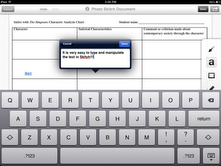
One of the challenges we faced this week was taking a character analysis chart and and transforming it into the digital, cloud-based world so students can interact with the content anywhere. Since the chart contained a table, Google Docs mobile was out, because the table feature is not available yet on the iPad.  We brainstormed several alternatives including Pages, Notability, and Doceri, but settled on Skitch since it allowed students to type on the image, size it easily, save to a camera roll, and can be uploaded to Google Drive.


Step 1:  Getting the image to Skitch

First we tried to take a picture of the paper and import it into Skitch. The quality was of the image ok, but we weren’t quite satisfied.  There had to be an even better solution.  And we found it!

On the computer, I copied the chart from Word (edità Select All-> Copy)  to a PowerPoint slide (New Slide à Paste) and saved the slide as an image, a JPEG. 

To Save a PowerPoint Slide as an image do the following:

      1.     File -->  Save As

       2.    Click the Arrow and select   JPEG from the choices listed.
3.  Voila! A crystal clear chart and NO PAPER!

Note: Remember where you save the image. I like to save to my desktop. 


Then, we e-mailed the image to all the students to save in their camera roll.

Photo taken of the chart.
Chart saved as a JPEG from PPT


Step 2: Editing and Saving the Image

The kids saved the image into their camera roll on the iPad, then opened Skitch, and imported the image.  Each student added information to the chart daily and saved the image to the camera roll at the end of the class period. 

The classroom workflow for the week was, students open Skitch, import their edited image from the previous day, and keep adding content.  On Friday, students saved it to the camera roll and e-mailed the completed chart to us for grading.  

Camera Roll = Save; E-mail = Hand In


Here is a sample of the completed chart:


 Now on to paperless grading!

Written by Ann Feldmann
@techiefeldie


Wednesday, January 23, 2013

Recipe for Successful Classroom Collaboration

How many students participate in a class discussion?  A handful? Five to ten?  Answers vary depending on the class, time, and topic, but to get all students to have a voice is every teacher's’ challenge.

Today, all 26 students in Jeff Bernadt’s (@jbernadt) history class thoughtfully participated in a class discussion using their iPads and a back channel at http://todaysmeet.com.  

Students were given a choice of 12 different articles to read about the Holocaust from the American perspective and the following writing prompt on the back channel at TodaysMeet.com:
“What are your thoughts after reading about the Holocaust from the American perspective? Reference information from readings in your post.”

Students began to read with a purpose, the room fell silent, and the conversation lit up online.  Students purposefully posted comments to the back channel using their iPads and shared facts, feelings, and questions based upon the article(s) they read.  Mr. Bernadt, spent his time reading and responding to students throughout the activity.

The class period zipped by at 4G speed! Before we knew it, we had 19 pages of discussion and the class period was nearly over. 


“We had a great little discussion,” Bernadt said to conclude the class.  “I am hearing lots of voices today.  In a traditional class discussion, there are always just a few that have a voice. Here it gives all of you an opportunity to have a voice and listen to alot of view points very quickly.”


Written by Ann Feldmann
@annfeldmann1

Thursday, November 29, 2012

Purposeful Padding in the Math Classroom - Post 7

Today I was in the room before the tardy bell.  As students arrived, they took their seats.  

“Do you want to grab your iPads and get started playing Meteor Math?” I asked.

They quickly grabbed  jumped up and got their iPads and those walking in the room joined them. Before long, everyone was working away on the Meteor Math app and the tardy bell had not even rung.

When the bell did ring, students were already engaged in the app! The head fake is they think they are playing a game and moving up levels, but they are really solving lots of math problems even before the day officially started.

In our quest to be paperless, I wanted to see if we could scan a QR code projected on the screen to move to our bell ringer, rather than sharing it on paper.  We discovered that the QR code must be bigger in order for them to scan it from their seat. So, we moved ahead with plan B, e-mail.

“Ok, tap the mail app. You will see an e-mail from me about your homework and you will also see a link to a Google Form for our bell ringer, “Gina Stukenholtz, 7th grade math teacher, said.

Efficiency. That would be the word for it.  They transitioned from the Meteor Math App, to the Mail App, to a Google Form and Doceri seamlessly and effortlessly. No shuffling papers, looking for pencils, finding page numbers, just a tap of the home button and all was well.

Another tap, they started a new Doceri project and began notes on fractions.  Instead of just e-mailing a homework problem in today, we took a bold new step and had the students explain their reasoning.  Using the Doceri app, students tapped record and then talked us through how they solved they converted a mixed number to an improper fraction.  It was a delight to hear the room full of students talking like mathematicians.  

Sharing the file was very easy, just a matter of dragging the recording to the mail icon, and voila, it was off to Mrs. Stukenholtz’s e-mail.  


Lessons Learned

1. E-mail is transforming classroom workflow for papers.  The two way communication is great.
2. Scanning a QR code works best on paper.  It is a great way to connect to the digital world without having to type a URL.
3.  Google forms seemed to be easier for the kids to use than
Socrative.  It was less frustrating for some students that had issues getting Socrative to start correctly on their screens.
4.  Students are engaged, solved many math problems, and are competitive playing Meteor Math.


Written by Ann Feldmann 

Wednesday, September 26, 2012

Bye Bye Bullet Points, Hello Haiku Deck

I just learned about a great app, Haiku Deck, from my colleague @jennykbps. I LOVE it! Haiku Deck allows you to create stunning presentations on the iPad. It is intuitive, easy to create and edit, and most of all easy to share. It is an image based application and the images available will blow your mind. Best of all, presentations can be Tweeted, shared out to Facebook, embedded, or shared via a link.

I can envision students using this app for classroom presentations. With ample access to i0S devices, this would be the tool of choice for making visual aids for speeches, presentations on a topic, or challenge based learning projects. Combined with an Apple TV, Haiku Deck presentations would be a natural part of the classroom workflow. You can get the FREE Haiku Deck app at http://itunes.apple.com/ca/app/haiku-deck/id536328724?mt=8
-Written by Ann Feldmann @techiefeldie

Check out what I made for our new teacher training today!

Thursday, April 5, 2012

Frog Dissection 21st Century Way


Frog Dissection - 
So real you can almost smell the Formaldehyde! 

Frog Dissection is a very realistic app that goes through all the steps of dissecting a frog.  Students start by pinning the frog specimen to the virtual dissection tray.  Using the scissors, scalpel, and forceps, students methodically dissect the Frog.  Students lift the liver lobes with the forceps, which shows all the internal organs.  Tap on the organs to learn more information on the organ. The organ is in 3D and can be rotated.  

Additionally, there are eight other sections to explore including Frog Lifecycle, All About Frogs, Human vs. Frog, Wet Lab Process, Quiz, Internal Organs, Video, Types of Frogs, and Interactive Activities.  Each of these sections contains interesting facts, images, and videos to learn more about frogs.  

We used this app with 7th grade science students.  It was definitely a hit!  Students used the iPads in groups of  3-5 and dissected the frog, learned about frogs, and also took the quiz.  This app took them places their book never could!  They were engaged, curious, and learning the whole class period.  The app, Frog Dissection, is $4.99 and is not and app within and app!  Here is the link to the app.

One of the unexpected outcomes was the amount of learning that took place in the virtual dissection which made the real dissction the next day go so much smoother.

"Students knew what the organs looked like before they began dissecting the frogs, " Kristie Kuhn, middle school science teacher said.  "The real dissection day went very smoothly."

Check out this YouTube Video to see them in action!  
Written by Ann Feldmann @annfeldmann1

Wednesday, November 30, 2011

Great QR Code Social Studies Project

Recently, I had the opportunity to help out with a great Social Studies project created by 4th grade teacher Mrs. Sharae Geldes (@SGeldes) from Two Springs Elementary School and I was so impressed!

She started by creating another page in her
WEEBLY webpage called Tour The South and made pages with links to different places in the South and clues on each page.

She created QR codes on a
Google QR creator of each page and printed the QR code.  She put those QR codes on a bright green paper backing and hung them all over the school for students to find.I helped by bringing a couple of iPads along & my iPod touch for the kids to use and of course being support and team-teaching with her.  Mrs. Geldes put her students together in groups of 3 or 4.  Armed with their IPads or iPod the students started around the school on the QR code scavenger hunt of the South.   THEY WERE SO ENGAGED!  and having a great time!  

As they went from Code to Code they had to write down specific information about what they found at each stop which they would turn into Mrs. Geldes at the end of class.


The following week my Colleague
Ann Feldmann (@techiefeldie) and I returned to help with the project some more and have the students review the Weebly page.  Then in the computer lab Mrs. Geldes told them to pick one place out of the 10 that they would like to go to.  We fired up Google Earth and took the kids there and in most instances we were able to use street view and cruise around the actual places, buildings, & historic sites within the project.  The kids loved it!

I was struck by a couple of things within this project that Mrs. Geldes created and I assisted with:  once again students were engaged with the influence of technology within the lesson.  Making Social Studies come to life!


Finally, Mrs. Geldes spent some time to put this together, but she made this lesson so much better for the time she invested for her students.  Kudos to her!


I enjoyed being a part of it and am excited to take a project like this to others in the district.

Saturday, October 29, 2011

Digital Devices Empower Learners


As my colleague, Jenny (@jennykbps)  pulled iPads out of the bag, the 4th grade students were breathless and wide eyed, as if superman himself had appeared in the classroom. Excitement filled the air and everyone was waiting on the edge of their seats, hands in the air, in eager anticipation of what they were about to learn.  

Delighted, the students enthusiastically joined us at our technology center where they were given an iPad 2, iPod Touch, or a DS, and were engaged immediately on math facts by the apps, videos, and games on the devices.  They worked intently for an hour on mastering multiplication facts, trying hard to beat their time, set a high score, or move to the next level.  Each student was working at his/her own level and motivated to learn.  

The hour long math class melted away quickly and before long we needed to pack up.  The kids said the following:
“Do we have to go to lunch?”

“Just a minute, I need to finish this level.”  

“I almost have a new high score.”

“When are you coming back?”

“Math was fun!”

“I did more problems than ever!”

“I liked the video, it helped me remember.”

We knew putting the iPads, iPods, and DS’s in their hands would make a difference, but we did not expect it to be transformational.  Not only were we able to individualize the instruction for each child, every student was 100% on task the entire time, had fun, did more problems, and did not want to stop working.  Every student was challenged at their level and advanced at their own pace.   

Another interesting finding at this school where many are free and reduced lunch, was that most students have access to technology outside of school, but use the devices for entertainment, not learning.
“I have a DS at home, but I just play games on it,” one 4th grader said.  “I am asking for Math Blaster for my birthday.”
“My mom has a phone that has apps,” said another student. “I am going to ask her to get Math Bingo for me.”

According to Mary Beth Hertz (@mbteach) , “The digital divide is no longer an issue of access. Instead, there is a widening gap between those who use technology to be entertained and those who are empowered by it.” http://www.edutopia.org/blog/digital-divide-technology-internet-access-mary-beth-hertz

Our next step is to collect some baseline data and work with this same group of students over the next six weeks and see how learning with iPads, iPods, and DS’s impacts test scores.    

Check back later for more about our pilot with these 4th graders.

Apps Used: Math Bingo, Bubble Math, Math Samuri, My Math App, Flash Racer, Math, Sum Stacker
DS Games: Math Blaster, Learn Math
Videos:
1. Multiply by 9’s - http://www.teachertube.com/viewVideo.php?video_id=183949&title=9s_times_table_multiplication&vpkey=

2.  3, 6, 9, - http://www.teachertube.com/viewVideo.php?video_id=167261&title=Multiplying_3_s__6_s___amp__9_s&vpkey=
-Ann Feldmann