Showing posts with label Google Plus. Show all posts

Sunday, March 10, 2013

Google Plus Community Feature - Part 2


In a previous post found here:    I wrote about creating a Google Plus Community.

This post is about digging a little further into this Community feature within Google Plus.  Previously I wrote about how a Google Plus Community can be Public or Private.  If it is Public than of course anyone can join and if it is Private people would have to be invited by the owner.

Let's dig in to a couple of features that I am finding to be extremely helpful and I feel have tremendous power if utilized properly.
As an owner or moderator of the Community, under the Actions button pictured below you can do two key things that I think are important.
First, if you choose "Edit Community" you are able to add links, description, location, but most importantly in my opinion is the ability to add category to the discussion of the community as pictured below.  This can help narrow conversations going on in a community that may have many things to talk about.  For example, GAFE, iPads, Chromebooks, etc.  This will make for much easier searching for members of your community.

Furthermore, something else that I have found to be fairly fabulous is this:  personally I take lots of pictures of my kids.  So I am using my Private Catlett Family Community as a place we (my wife and I) can get to together and later on the kids once they are old enough.  Check this out though.  So I have an iPhone 4s and I now have the G+ app and I can add pictures from my phone straight into the Community very easily.  That is pretty sweet in itself, but let me go a little bit further.
Now my wife can access those photos from anywhere she is that has wifi and better yet she can download them to her machine for ordering at our local store (which she likes to do).

Below is a screenshot of my little man Charlie and a picture I uploaded from my phone to the Family Community.  I have clicked on this photo within the Community to view.
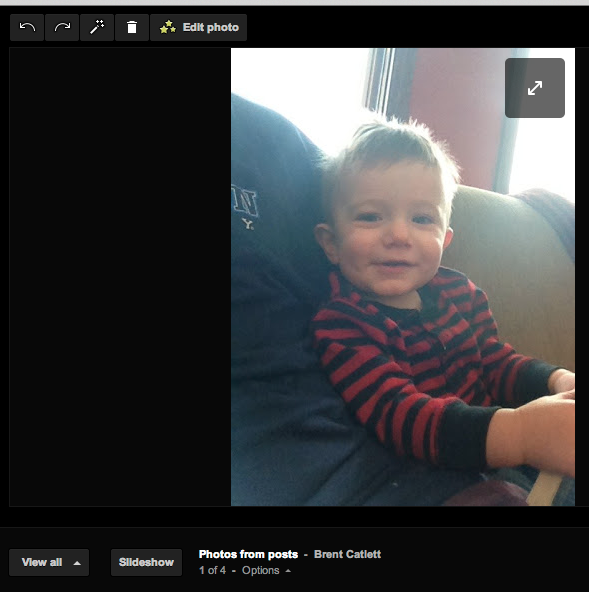

If we focus on the options button in the above picture and pictured below you can see there is a download option which is pretty awesome when sharing images with family, friends, or colleagues working on a project together.  So many times my colleagues and I need images taken by each other for a common project or newsletter that we are working on.  Now we can easily get to them.


Finally, another thing you may not have known that you can do within a Community is edit uploaded photos as pictured below.  This option is given in the view mode of the picture which is shown two images above in the upper left corner.  A new interface will open like the one pictured below.


Here is a closer look at the options given for editing photos below.  Lots of fun options right within my Google Community!

The further I dig in and use this product the more I like it.  One thing I love about Google is that I can do just about anything I need to do within one account.  Once again, I am able to add this to my growing list of things I can do within one FREE Google account.

Monday, December 10, 2012

Google Plus Community Feature


Google Plus recently just came out with a new feature.  "Communities"


You can see it in the above picture along the left hand side.  As you can tell from this Screenshot I am already in some new Communities that I was sent an invite to from a "moderator" and this moderator sends out the invites and potentially then folks join the community.  

Once I join, then I have the ability under "Actions" to share the community in my Google + feed or  I could invite people also.  Depending on how the moderator set it up, will depend on those who get in.  The moderator may have to approve first.  See this picture below:


You can also look through many communities that might be of interest to you and join them, it looks like from this small screenshot there are all kinds of areas and all kinds of fun to explore out there:


If you want to start your own community you have to go to the Communities button on the left hand side of your home Google + Page and click on it, then you will see a RED BUTTON that says CREATE A COMMUNITY.   See picture below:


You will then be prompted to choose between public and private as pictured below.

 If you click on Public you will get some options, what do you want to call it and do people need permission to join?  See picture below:
If you go the Private route it will look a little different and prompt you about whether or not you want to hide it from searches or if people can find it and ask to join, see below:
The picture below is after I chose Private and started a Catlett Family Community.  I could name it, add a tagline, add a description, add a category, and then save:


Once I had that initial set-up done and I said "Done Editing" then it prompted me to invite people, see picture below:

So now the SKY IS THE LIMIT with these Google + Communities in my opinion, as you could tell from the screenshots above I am already involved in some great local Nebraska Communities and the Google Certified Teacher Community.  I can see how setting up a Private Family one could be very fun too!  

I can see school districts running wild with this now that Google + is open in K-12 Domains for Google Apps for Education (GAFE).
You could have a district wide community, a high school building Community, a middle school building Community, etc.  Tons of potential in my opinion and once again Google continues to make such a collaborative, amazing product even better!  

Perhaps I will see you soon in a Google + Community!