Sunday, August 3, 2014

Google Hangouts + iPads + Awesome Teachers/Learners/Communiuty = Innovative Project Based Learning

Children at Bellevue Elementary had a unique opportunity this summer to go on an innovative three week long global reading and writing learning adventure with Mrs. Evon (@mrsevon1) and Ms. Braasch (@brittanybraasch). Led by Ms. Jena Ball (@JenaiaMorane) , author co-founder of Critterkin LLC, (@critterkin), via Google Hangouts, students learned more about kindness and demonstrated mastery of learning in a variety of ways, including reading, writing, blogging, quilting, and even a one act play!

IMG_0361.jpg
The three week project called “Lead with Your Heart,” was created by teaching partners Monica Evon (@mrsevon1) and Brittany Braasch (@brittanybraasch).  They designed a project based around the theme of kindness and compassion found in Jena Ball’s book, “Lead with your Heart”.  This project was built around Bellevue Public Schools Essential Objectives, which correlate to Nebraska State Standards:


LA 3.1 Students will learn and apply reading skills and strategies to comprehend text.
LA 3.2 Students will learn and apply writing skills and strategies to communicate.
LA 3.3 Students will learn and apply speaking and listening skills and strategies to communicate.


Here are the steps in this project based learning adventure along with some student samples, apps, and lessons learned along the way!


1.  Driving Question
The project centered upon the following guiding questions:
What is kindness?
What does it mean to be misunderstood?
How can you be kind to animals and others?

IMG_0342.jpg


2.  The Entry Event 
The entry event for the project was a Google Hangout with Jena Ball, Marty Keltz (@martysnowpaw), and actor Jonathan Keltz. The Google Hangouts continued regularly throughout the project for reading, writing, drawing, and acting lessons.  


3.  Voice and Choice
Students were given a lot of voice and choice in their writing, illustrating, and acting.  For example, students each created a unique quilting square for the collaborative kindness quilt. Ms. Jena showed the students a variety of options on how to draw the individual features of the puppies.  Students were given a variety of patterns for the puppies in the fabric quilt.  They were able to choose the pattern and fabric for the dog, as well as the background fabric.  Each puppy is unique to the student.

IMG_0517.jpg


Students wrote their own stories too!  Students loved the global aspect of publishing to kid blog where Ms. Jena commented on almost every post!

IMG_0398.JPG


4.  Research / Activities to develop kindness


Students work on a variety of activities over the three week.


Writing via KidBlog (both as themselves, and as the dogs)
Creating a video and using Aurasma App to showcase student work
Reading Lead with Your Heart
Quilting (paper, fabric, and chalk)
Filling a heart with words that have to do with kindness (nice, love, thoughtful, considerate, etc.)
Drawing of dogs
Discussion of the chapters and any important concepts (prejudice, being misunderstood, kindness, etc.)
A visit with compassion - Dory the toothless dog visit
One act play of the last chapter of Lead With Your Heart  for parents and friends with Ms. Jena Ball joining via Google Hangout.


IMG_0400.jpg

IMG_0702.jpg

5.  Revision
The role of critical friends and interactive work is a key component to creating a project that is worthy of the world! A continual revision cycle is key to improving reading and writing.  Students posted their writing on kidblog.org and received comments and feedback from Ms. Jena Ball and Marty Keltz, as well as their teachers Mrs. Evon and Ms. Braasch.


IMG_0425.JPG

6.  Public Audience
A key to project based learning is a public audience! This innovative project has two public components, kindness quilts to share with the community and a one act play to celebrate the learning adventure!  


Screen Shot 2014-08-03 at 8.28.44 AM.png


IMG_0745.JPG


7.  Amplify


The quilt the kids created with the help of Mrs. Dana Doran and the paper quilt that scans to videos of them telling their stories via the @aurasma app are now on display at the Sarpy County Historical Museum in Bellevue, NE.  The quilts are a beautiful keepsake of their learning adventure and something to hang proudly in the school after it makes its rounds of museum visits!  I love how each child took part in the creation of the quilts.  It is awesome because they now feel that ownership and pride.  They will see it often and remember this wonderful learning experience this summer!


I loved hearing all the comments parents made as they used @auramsa app to scan the puppies on the paper quilt discover a video of his/her child reading the story they authored.  They remarked about how much their children loved coming to summer school, how their child overcame fear of dogs, how they love to write, how they are excited to read, and one even said they may send their child to school at Bellevue Elementary next year as a result of this wonderful experience!


“We’re thrilled to have the CritterKin quilts be a part of the quilts exhibit this year. Beyond their far-reaching impact in the classroom, the quilts offer a blend of one of America’s oldest traditions, alongside state of the art technology to provide a great educational experience,” said Ben Justman, Executive Director of the museum.  


Materials:
Pencil, paper, copies of Lead with Your Heart by Jena Ball, Internet connection, fabric, scissors, crayons and colored pencils, iPads (if possible), time and patience


Apps Used:
Notability, Kidblog, Aurasma


Links
1.  CritterKin website: www.CritterKin.com
2.  Blog post by Mrs. Evon and Ms. Braasch
2. Kindness Quilt Story: http://wp.me/P37dkL-zw
3. Blog post about the Quilt: http://wp.me/p37dkL-HI
5. Student blogs about the project: http://kidblog.org/CritterKinAdventure/


Lessons Learned:


Using a book like Lead with Your Heart is a great way to introduce topics like prejudice and kindness in a way for students to understand.


KidBlog is a wonderful way to improve writing skills because students are given an authentic audience.  When they notice that someone outside of their teacher or classmates (in this case, author Jena Ball) is reading their writing, students are more excited about writing.  This is a great way to discuss the importance of the editing and revision process.  After introducing KidBlog, it is nice to talk about commenting and providing constructive criticism to other writers.  You can also talk with students about WOW writing, meaning Worthy Of the Web.  


Freedom in the creation process added student ownership and passion for the project.
Teamwork and collaboration are essential!  Google Hangouts, Docs, and Calendar kept us all on track!


Each of us bring our own genius to the mix. In sharing all of our strengths, students benefit and the process of teaching and learning is joyful.

IMG_0416.JPG

Written by Ann Feldmann (@annfeldmann1)


Bellevue Public Schools iPad Academy Model

How did iPad Academy (#ipadacademy) begin in Bellevue Public Schools?

We have had many people ask this question.  

My colleague, Jenny Krzystowczk and I experienced first hand six days of intense Apple training in Cupertino, CA. We returned inspired to recreate a similar experience for interested teachers in Bellevue Public Schools.  The Bellevue Public Schools iPad Academy is a training and coaching model based on the research and pedagogy from our Apple Academy training. All interested teachers must complete six days of Apple Foundations Training with Jenny and I. Teachers learn OSX, iLife, iWorks, iBooks Author, and iOS.  Then, upon successful completion of the training, teachers may apply to the iPad Academy.   Once selected for the iPad Academy, teachers receive a set of devices and an iPad Coach.

Our iPad Academy model is unique, successful, sustainable, and an inspiration to other districts rolling out iPads because it is grounded pedagogy, research, and instructional support.  Our teachers have truly transformed their classrooms under this model which involves extensive training, coaching, and establishing a culture that is transforming teaching and learning in our classrooms in Bellevue Public Schools.  

This summer, 30 teachers spent 6 days of their summer vacation in Apple Foundations Training (AFT) with Jenny and I. They joined the 110 teachers Jenny and I trained this past school year and they are now eligible to apply to for four spots in fall iPad Academy.  Interested teachers fill out an online application.  Applications are reviewed and teachers are selected.  Currently, we have 37 teachers in the iPad Academy with iPads in grades 2, 3, 4, 5, 6, and HAL (high ability learner) in the elementary. Additionally, we have iPads in the high schools in science, math, history, English, Spanish, Business, and SPED.

iPad Academy Details

Participants:  Teachers who successfully completed six days of intense Apple Foundations Training (AFT) are eligible to apply to the iPad Academy. Participants for the iPad Academy are chosen based the application.

Description:  Participants receive 15-30 iPads depending on the teacher’s classroom size as well as necessary accessories for success, such as headphones, styluses, and apps.  Teachers are then partnered with a coach for at least one semester.  Coaching occurs over a continuum of methods from co-teaching, collaboration days,  planning sessions, G+ Hangouts, blogging, journaling, Twitter,  and meetings.  iPads then remain with the teacher until further notice.  Teachers who have completed the iPad Academy are expected to be able to share their knowledge and provide support to future iPad Academy participants.  Teachers are members of two private Google Communities for both Apple Foundations Training and iPad Academy to share, support, and provide teachers feedback. All admins, iPad coaches, and teachers from AFT and iPad Academy are members of the community.

iPad Coaching topics covered include but are not limited to:

  • SAMR Model
  • Classroom Management with iPads: Cart, iPads, Charging,
  • Personalizing iPads
  • Learning to use a core set of APPS
  • Google workflow on the iPads
  • Reflector
  • Troubleshooting
  • The Global Classroom
  • Creativity in the Classroom
  • Pedagogy with iPads
  • Classroom environment
  • Collaboration with peers (student collaboration)
  • Cooperative Learning
  • Digital citizenship
  • Take home model
  • Differentiation
  • ITunes U
  • iBooks

Interested in learning more?

  • Read more about how the iPads are transforming the classroom from our iPad Academy teachers!  All our #ipadacademy teacher blogs are linked to our blog at http://technologytools4teaching.blogspot.com/
  • Click HERE to view #ipadacademy teacher contact information, twitter handles,  and links to their blogs!
  • Follow iPadAcademy happenings on Twitter at  #ipadacademy
  • Here are a few more details about the #ipadacademy

Written by Ann Feldmann @annfeldmann1

Wednesday, July 9, 2014

iTunesU ~ Now More Mobile Than Ever!


Ann Feldmann and I had literally just finished our summer Apple Foundations Program with 30 Bellevue teachers when my cell phone rang.  Mark, our local Apple rep was calling to let me know that iTunesU just updated with some great new features.  Our training department uses iTunesU frequently for course creation and content housing. The new features are going to make us even more efficient and effective as we utilize iTunesU.  Here are some of the features you will now see once you update your iTunesU app on your iPad:

The ability to create courses right on your iPad.  Simply tap the plus sign and tap create course. Step through the windows that show up to get started.  It’s that simple.  


In-course discussions.  Think of it as a backchannel for your students who are enrolled in the course.  You have the ability to turn this option on or off. Your course must be set as private to use the discussion capability.


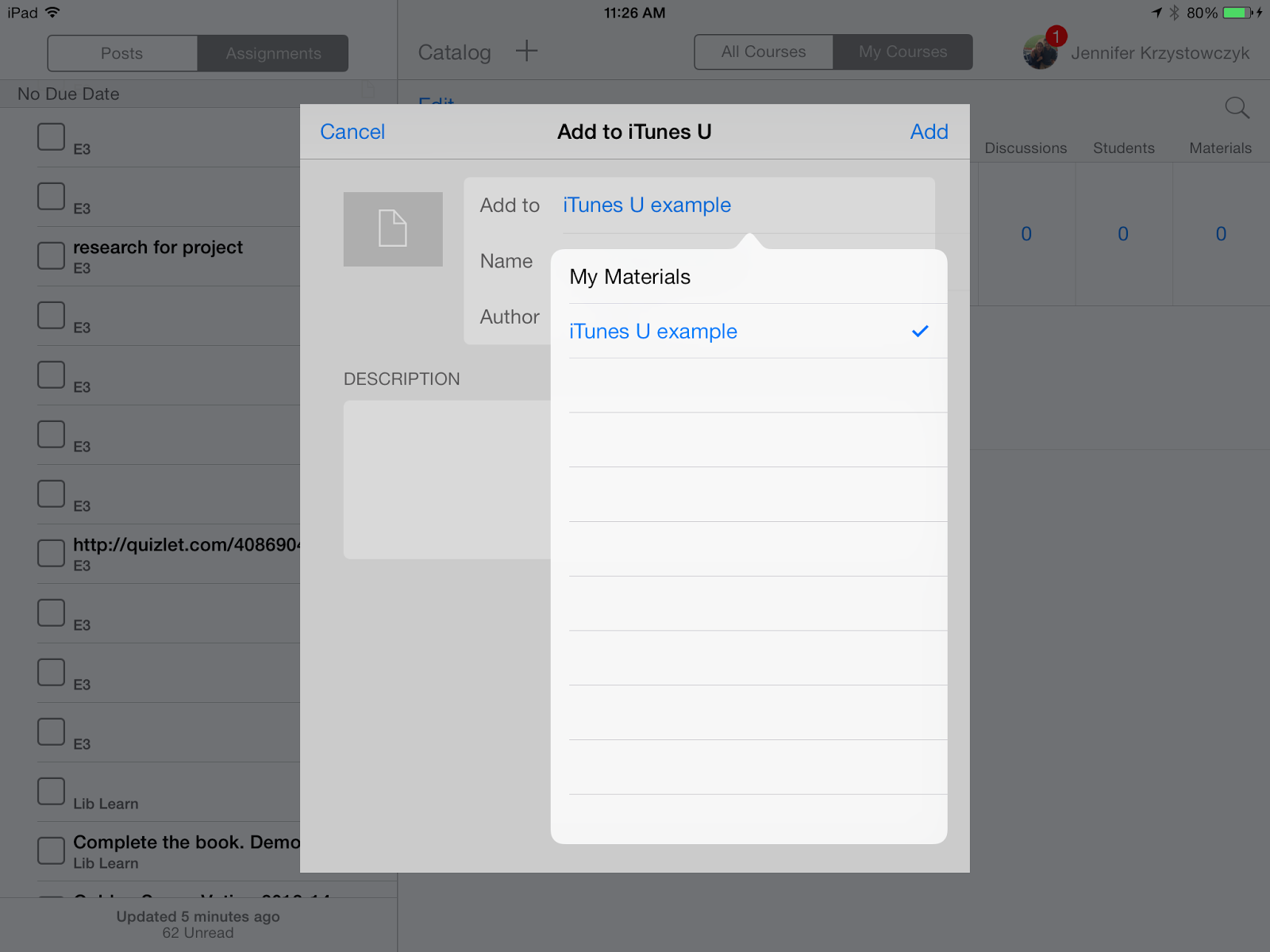
Projects created on your iPad can now be seamlessly added to your course. Apple applications like iMovie, Garageband, Pages, Numbers, and Keynotes can be added straight over to “my materials” using the “open in another app” option under the share command.  You can even add it specifically to the course you created!  Furthermore, other third party app projects from apps like Book Creator can also be added to your course.  I don’t know about you, but this changes everything for me as an author!  iBooks author might get a little lonely from now on!


This is a Pages Document on my iPad

If I choose Open in iTunes I can add it to "My Materials"

It can put it in "My Materials" or put it directly into the correct course like below.


These new features truly make iTunesU a mobile application in every sense of the word!  Thanks Apple for always improving and supporting educators like myself.  


Monday, June 16, 2014

Flubaroo + Google Forms = Homerun

Tired of grading quizzes?  Want more plan time?  Would you like immediate results for students?  Let Google do some of the work for you.


Google Forms with the Flubaroo Add-On are the ticket to more time to plan instruction and less time to spend of grading! The results will be inserted on a new sheet on your form and results can be e-mailed to students.  


It's simple, fast, and FREE!
 

Here are a few quick steps:


1.  Create the quiz using Google Forms.  Add three questions at the beginning of the survey: first name, last name, and e-mail address. 
2.  As a teacher, take the quiz. Your results will be the answer key.
3.  Go back in to Google Spreadsheets. 
4.  Click on Add-Ons and search for Flubaroo.
5.  Click on the Add-Ons tab and you will now see Flubaroo.

6. Click on Add-On --> Flubaroo > Grade Assignment. 
7.  Answer the on screen prompts.
8.  Your quiz is now graded.  The results are on a new sheet ready for you to view and even e-mail to students!


Need some help? Check out the Flubaroo website at http://www.flubaroo.com/
Written by Ann Feldmann @annfeldmann1

Thursday, June 12, 2014

It's Time For A Little Google Drive Clean-Up

It’s that time of year when teachers get to dig into summertime projects that have been piling up throughout the school year.  You know the ones, your pantry needs to be wiped down and organized, your kids' closets need to be sorted, donated, and organized, and that greying fence could use a fresh coat of paint.  Well guess what, your Google Drive closet could use some TLC as well!  If you’ve been using Google Drive all year, here is a list of six things you will want to accomplish before the new school year.  

1.)  Go through and delete old student folders.  If you have templates that you want to reuse simply move them to a template folder and delete the old student work.
2.)  Make a copy of forms that you use frequently like lunch count, field trip or contact information and rename it for the coming year.  Then delete the old data.
3.)  Update your Google Drive App and be sure to download the new Sheets and Docs apps on your iPad or tablet.
4.)  If you have folders that hold documents and projects that you use every year and you need to copy the entire folder you can do that by using this script.  Just authorize the script and add the alphanumeric information from the URL and rename your new folder.  Works like a charm!
5.)  Unshare any private documents to individuals who no longer need access to it.  This is especially important for any special education teachers.  
6.)  Look at your Google Drive in “My Drive” view and scroll all the way to the bottom.  You will see any unorganized or loose docs there.  Be sure to go through those and place them in a new folder or the appropriate folder.  

Just like any organizational system, things can get away from you pretty quickly!  Taking the time to sort through your digital closets once a year is a great idea.  Now you can start your year off organized and ready to roll!  

And don’t worry, it can wait until right before school.  That’s the beauty of using Google.  It’s always there waiting for you when you need it!  

Written By: Jenny Krzystowczyk
@jennykbps